
darkFlash V92
4.1Editor score
USB-C or Internal 9-Pin Connection
Free Station Space Software Included
Ultra-Wide 1920×462 IPS Panel
Modern PC builds often feature internal displays to show system stats or custom media. An LCD Screen for PC Case transforms your rig into a dynamic dashboard. Selecting the right model depends on size, resolution, and software support for smooth operation.
We evaluated ten top-rated panels based on ease of setup, image quality, and mounting flexibility. Our analysis covers USB connectivity, driver requirements, and software ecosystems like L-Connect and TRCC to ensure you get the best user experience possible.
Each pick highlights specific strengths such as touch capability, AIO integration, or budget pricing. Note that stock levels and pricing fluctuate frequently on online marketplaces, so verify current availability before finalizing your purchase decision today.
4.1Editor score

4.4Editor score

4.5Editor score
As an Amazon Associate we earn from qualifying purchases.
The following table provides a quick side-by-side look at the key specifications and features of all ten LCD Screen for PC Case models reviewed in this guide to help you decide quickly.




The Lian Li SM088X stands out as a top contender in the LCD Screen for PC Case market with its versatile 8.8-inch display and robust L-Connect 3 software. It holds a strong rating and offers users the ability to customize themes, upload videos, and monitor hardware stats seamlessly.
We may earn a commission when you buy through this link, at no additional cost to you.
Its standout qualities include dynamic control via software that allows you to upload your own videos and photos for a personalized display. The USB-powered secondary display feature lets you use the screen independently without valuable GPU ports, which is a major advantage for multi-monitor setups.
While it requires specific installation screws to avoid damage, the trade-off is minimal given the secure mounting bracket that supports height and tilt adjustments. The diffused ARGB lighting enhances aesthetics without overwhelming the build, syncing with your system for a cohesive look.
You should buy this if you want a premium experience with extensive customization options and reliable hardware monitoring. Its compact and stylish design fits any gaming or workstation setup while delivering vibrant visuals and professional-grade performance.
Access preset themes and modular information to create a personalized display that suits your style and shows real-time system data.
The screen functions independently as a secondary monitor, showing hardware stats or media without using GPU ports.
We may earn a commission when you buy through this link, at no additional cost to you.
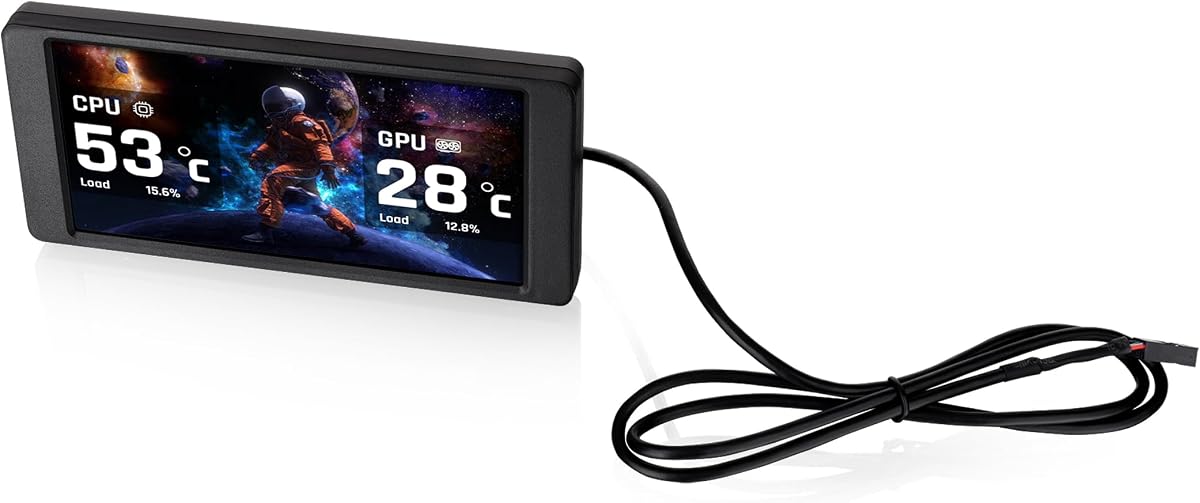
The darkFlash V92 offers an impressive 9.2-inch ultra-wide IPS screen at a budget-friendly price point, making it accessible for enthusiasts who want to display CPU, GPU, and RAM stats without breaking the bank. It scores well on value and functionality for standard PC builds.
We may earn a commission when you buy through this link, at no additional cost to you.
Its key strengths lie in the included free Station Space software that supports themes, plugins, and widgets without needing AIDA64. The 1920×462 resolution delivers bright, sharp visuals through tempered glass, and the slim aluminum body ensures it looks sleek inside any case.
A trade-off is that Station Space must remain running in the background, which might use minor system resources. Additionally, it is only compatible with Windows 10/11, so users on Linux or macOS may need to look elsewhere for similar software support.
This pick is ideal for builders seeking a cost-effective solution with wide viewing angles and flexible mounting. Its USB-C or internal 9-pin connection keeps GPU outputs free, ensuring easy integration into ATX or micro-ATX cases with ample clearance.
Monitor system data and use free themes, plugins, and widgets without needing AIDA64 for real-time monitoring.
Connect through external USB-C or internal 9-pin header without HDMI or DisplayPort to keep GPU outputs free.
We may earn a commission when you buy through this link, at no additional cost to you.
The WOWNOVA 8 Inch screen earns its premium status with advanced features like desktop mode, allowing it to function as an extended screen for your PC. It boasts a high rating and supports dynamic video themes, offering a level of customization that rivals dedicated second monitors.
We may earn a commission when you buy through this link, at no additional cost to you.
Its key strengths include a simple one cable connection that can be mounted internally off a USB header without needing a GPU port. The IPS full view panel ensures excellent color accuracy and viewing angles, while the self-developed software occupies less system resources than competitors.
You might need to ensure you use the English version of the software for optimal compatibility. Additionally, enabling desktop mode might require more system resources, but this is acceptable for users who want a truly versatile display inside or outside their case.
Buy this if you want top-tier customization and a display that can double as an extended screen. Its horizontal and vertical switching, visual theme editor, and customer service support make it a long-lasting investment for any modern gaming setup.
Switch to desktop mode as an extended screen to use the display beyond just internal sensor panel functions.
Support for dynamic video themes allows you to upload your own content for a highly personalized experience.
We may earn a commission when you buy through this link, at no additional cost to you.
The wisecoco 12.6 Inch is designed specifically for the Hyte Y60 case, offering a seamless fit that simplifies installation significantly. It supports HDMI input and includes built-in speakers, making it a versatile choice for users who want audio output alongside visual monitoring.
We may earn a commission when you buy through this link, at no additional cost to you.
Its key strengths include a high-resolution IPS panel with 1920×515 resolution and wide viewing angles. The screen is compatible with PCs and laptops in landscape mode, allowing you to use it as an extra display on your desk for general tasks.
A minor trade-off is that the power cable may require a separate adapter or specific setup. However, the included screwdriver and bracket make mounting straightforward, and the compact kit ensures you get everything needed for a quick start.
Choose this if you own a Hyte Y60 and want a dedicated screen solution. Its 3-5 ms response time and 60Hz refresh rate provide smooth visuals, making it a great DIY kit for gaming and general use.
A screen bracket fits the Y60 case panel perfectly, requiring no extra screws for easy installation.
Built-in speakers eliminate the need for external audio devices, enhancing your multimedia experience.
We may earn a commission when you buy through this link, at no additional cost to you.
The Hosyond 8.8 Inch stands out with a responsive capacitive touchscreen, allowing direct interaction with your system stats or media. It offers a sharp 1920×480 resolution and HDMI input, making it versatile for both PC monitoring and Raspberry Pi projects.
We may earn a commission when you buy through this link, at no additional cost to you.
Its key strengths include low power consumption at 3.8W via USB Type-C and driver-free setup for Windows systems. The wide viewing angle and true-to-life colors ensure vibrant visuals, suitable for coding, streaming, or casual monitoring.
You will need to download AIDA64 separately to utilize hardware monitoring features. Additionally, while it supports multiple systems like Ubuntu and Kali, touch functionality might vary, so verify compatibility with your specific OS.
This pick is ideal for tinkerers and Raspberry Pi users who want an interactive display. Its energy-efficient design and versatile connectivity options make it a practical secondary screen for various applications and setups.
Capacitive touchscreen allows smooth control for interacting with media or system info directly.
Consumes just 3.8W via 5V USB Type-C for energy-efficient performance without extra power cables.
We may earn a commission when you buy through this link, at no additional cost to you.
The Thermalright Trofeo Vision is a compact 9.16-inch display designed to integrate smoothly into PC cases with its slim profile. It features a crisp resolution and comes with TRCC software, offering a straightforward way to monitor system health.
We may earn a commission when you buy through this link, at no additional cost to you.
Its key strengths include a plug and play USB-C connection that ensures quick setup and compatibility with most Windows systems without drivers. The TRCC app allows you to choose preset themes or design your own unique interface for a personalized look.
A trade-off is that the software interface is relatively basic compared to premium options like L-Connect. However, its compact and stylish build fits seamlessly inside or outside your case, making it a great choice for modders seeking simplicity.
Buy this if you want a cost-effective display with real-time monitoring capabilities. Its sleek design and easy setup make it accessible for beginners while providing enough features for experienced users.
Easily track CPU/GPU temps and memory usage with real-time data for complete system control.
Includes TRCC app with preset themes and DIY options to design a unique interface.
We may earn a commission when you buy through this link, at no additional cost to you.
The Thermaltake 6.0 Inch LCD Kit is tailored for users with View 370 or View 390 cases, offering a larger surface than older models. It supports TT RGB PLUS 3.0 software for customizable graphics and real-time monitoring data.
We may earn a commission when you buy through this link, at no additional cost to you.
Its key strengths include the ability to upload custom graphics in various formats like JPG or MP4. The display provides real-time information on key system components and allows background customization, enhancing the personalization of your build.
A trade-off is the lower resolution compared to others in this list, which might impact text clarity. Additionally, it is primarily designed for specific Thermaltake cases, so compatibility might be limited for other chassis options.
Choose this if you own a supported Thermaltake case and want seamless integration. The TT RGB PLUS suite offers enhanced control and monitoring, making it a good choice for ecosystem users.
Upgraded suite of features with a clean UI for better customization and system monitoring.
Get real-time info on CPU, GPU, RAM and other components with customizable load and load options.
We may earn a commission when you buy through this link, at no additional cost to you.
The GeeekPi 12.6 Inch monitor offers a premium experience with up to 10-point multi-touch and a high-resolution IPS display. Designed for Hyte Y60 cases, it provides a seamless integration for users seeking an interactive secondary monitor.
We may earn a commission when you buy through this link, at no additional cost to you.
Its key strengths include tempered glass panel responsiveness and built-in speakers for audio without extra devices. The display ensures colors remain bright from any angle and requires no additional software, working out of the box for Mac and Windows users.
A trade-off is the need to remove a protective film before use for optimal visibility. Additionally, multi-touch may not be fully supported on all operating systems, so verify compatibility if you rely on touch features.
Buy this if you want a large, touch-enabled display for your Y60 build. Its high contrast and wide viewing angles make it suitable for both system monitoring and general media consumption.
Equipped with a sensitive touch screen for excellent accuracy and multi-touch functionality.
Two built-in speakers provide audio output without the need for external speakers.
We may earn a commission when you buy through this link, at no additional cost to you.
The Thermalright TV 9.16 features a unique magnetic suction design that eliminates the need for screws, allowing for quick installation and removal. It offers a full-color IPS display that accurately reproduces colors and supports dynamic image switching.
We may earn a commission when you buy through this link, at no additional cost to you.
Its key strengths include a sturdy metal frame and TRCC software control for monitoring functions. The monitor auto-starts with your computer and resides in the taskbar background, ensuring seamless operation without manual intervention.
A trade-off is the requirement to confirm wiring completeness before installing software. Additionally, the monitor relies on the motherboard's 9-pin USB interface, which must be available for the magnetic screen to function properly.
Choose this if you value easy installation and reliable monitoring. Its magnetic attraction and TRCC integration make it a practical choice for cases that support magnetic panels or water coolers.
Metal frame technology allows magnetic mounting without screws for easy installation and removal.
Software controls monitoring and on/off functions with auto-start and taskbar background mode.
We may earn a commission when you buy through this link, at no additional cost to you.
The Thermalrlght Trofeo 6.86-inch model offers an entry-level option for builders seeking a budget-friendly display. It features a magnetic panel screen and supports TRCC software for dynamic and static image switching.
We may earn a commission when you buy through this link, at no additional cost to you.
Its key strengths include compatibility with magnetic chassis fixed panels or Trofeo Vision water cooling radiators. The screen allows movement in various positions without fixed limits, providing flexibility for case mods.
A trade-off is the lower resolution and basic color accuracy compared to premium options. However, its compact size and magnetic attraction make it a convenient choice for smaller builds or specific cooler placements.
Buy this if you need an affordable display with flexible mounting. Its TRCC integration and magnetic design provide essential functionality for monitoring system parameters without high cost.
Compatible with magnetic chassis fixed screens allowing movement in various positions without fixed limits.
Supports dynamic/static image switching and DIY personalized themes via TRCC software.
We may earn a commission when you buy through this link, at no additional cost to you.
Selecting the right display involves evaluating multiple factors including size, connectivity, and software capabilities.
Choose a size that fits your case's window or panel while providing enough resolution for legible text. Larger screens like 12.6 inches offer more detail but may require significant internal space.
Prioritize at least 720p resolution to ensure system stats are clear and readable from a distance.
Most displays rely on specific software like L-Connect, TRCC, or Station Space to render system stats and themes. Check if the software supports your operating system and offers features like theme editing or video uploads.
Ensure the software is free and easy to install to avoid extra costs and complex setup steps.
Look for USB-C or USB 2.0 9-pin headers for power and data. HDMI options exist for external use but may take away from GPU outputs if not used carefully.
Flexible connectivity ensures you can power the screen from the motherboard or a USB port without cluttering your build.
Verify that the display comes with brackets or magnetic options for your specific case model. Some panels are designed specifically for Hyte Y60 or Thermaltake cases.
Secure mounting prevents vibration and ensures the screen stays visible and stable over time.
Some screens include built-in speakers for multimedia playback without external devices. This is beneficial for gaming or streaming setups.
Evaluate if audio output is necessary for your workflow before choosing a model with speakers.
Touchscreens allow direct interaction with your dashboard, which can be useful for complex layouts. Confirm driver support for your OS to avoid input issues.
Consider if touch is a priority since it often increases the price and complexity of the device.
Prices range from budget-friendly options under $50 to premium models over $100. Set a budget based on your needs for resolution and software features.
Investing a bit more often brings better software support and more durable build quality.
Choose a display with updatable software and customizable themes to ensure longevity. Avoid models with limited support to prevent obsolescence.
A versatile screen that supports video uploads and DIY themes will remain useful as software evolves.
Install the display using the provided brackets or magnetic mounts, ensuring all cables are connected securely. Power the screen via USB or motherboard header as specified in the manual.
Download and install the manufacturer's software, then configure themes and data widgets to display the stats you need. Restart your computer to ensure automatic start-up works.
Clean the screen periodically with a soft cloth to avoid scratches, and update the software to maintain performance and security.
Most software packages like Station Space or L-Connect are optimized for Windows and do not support macOS. Always check the software compatibility list before purchasing to ensure it works with your operating system.
Power is typically supplied via a USB Type-C cable or a 9-pin motherboard header. Follow the manual to identify the correct connection type and ensure the voltage matches the requirements.
Many models are designed for internal use but can function as external monitors if connected via HDMI or USB. Ensure the mounting options allow for external placement if needed.
Yes, most displays require manufacturer-specific software like TRCC or L-Connect to render system statistics. This software is usually free but must be installed and running for the display to function.
Some models like Hosyond offer touchscreen capabilities, but not all. Check the product description for capacitive touch support and driver requirements before buying.
Certain displays are designed to pair with AIO liquid coolers or support magnetic mounting on specific chassis. Review compatibility lists to ensure your cooler supports LCD integration.
Use the provided software to upload new themes or select from presets. Some models support dynamic video uploads or allow custom backgrounds and widget configurations.
Warranty terms vary by manufacturer, but most offer at least one year of coverage. Check the seller details or manufacturer website for specific policy information before purchase.
We reviewed ten top LCD Screen for PC Case models, from the versatile Lian Li SM088X to the budget-friendly Thermalrlght Trofeo. Each option offers unique features to enhance your system's functionality and aesthetic.
When choosing, prioritize compatibility with your case, software flexibility, and connectivity needs. Touchscreen and high-resolution options provide better value for advanced users.
Prices and availability change frequently, so verify current stock and deals before purchasing. With the right display, your PC build will be both functional and visually stunning.