
MINISFORUM DEG1 Docking Station
4.5Editor score
Compact Portable Design
OCulink 4i Interface
Force Power On Feature
Discover the top Egpu Docks for 2026. Our guide compares features, performance, and compatibility to help you choose the perfect external graphics solution.
External GPU docks transform laptops into desktop powerhouses by connecting powerful graphics cards. A good dock ensures stable high-speed data transfer and efficient cooling for demanding tasks like gaming or AI workloads.
We evaluated ten top models based on interface speed, power compatibility, and build quality. Each selection offers unique advantages for different user needs, from portable setups to stationary workstations.
Every pick highlights key specs, pros, and cons to simplify your decision. Note that prices and availability may vary, so check current listings before purchasing your preferred dock.
4.5Editor score

4.4Editor score
4.8Editor score
This side-by-side comparison highlights key specifications across all ten selected Egpu Docks to help you identify the best fit for your hardware and performance requirements.


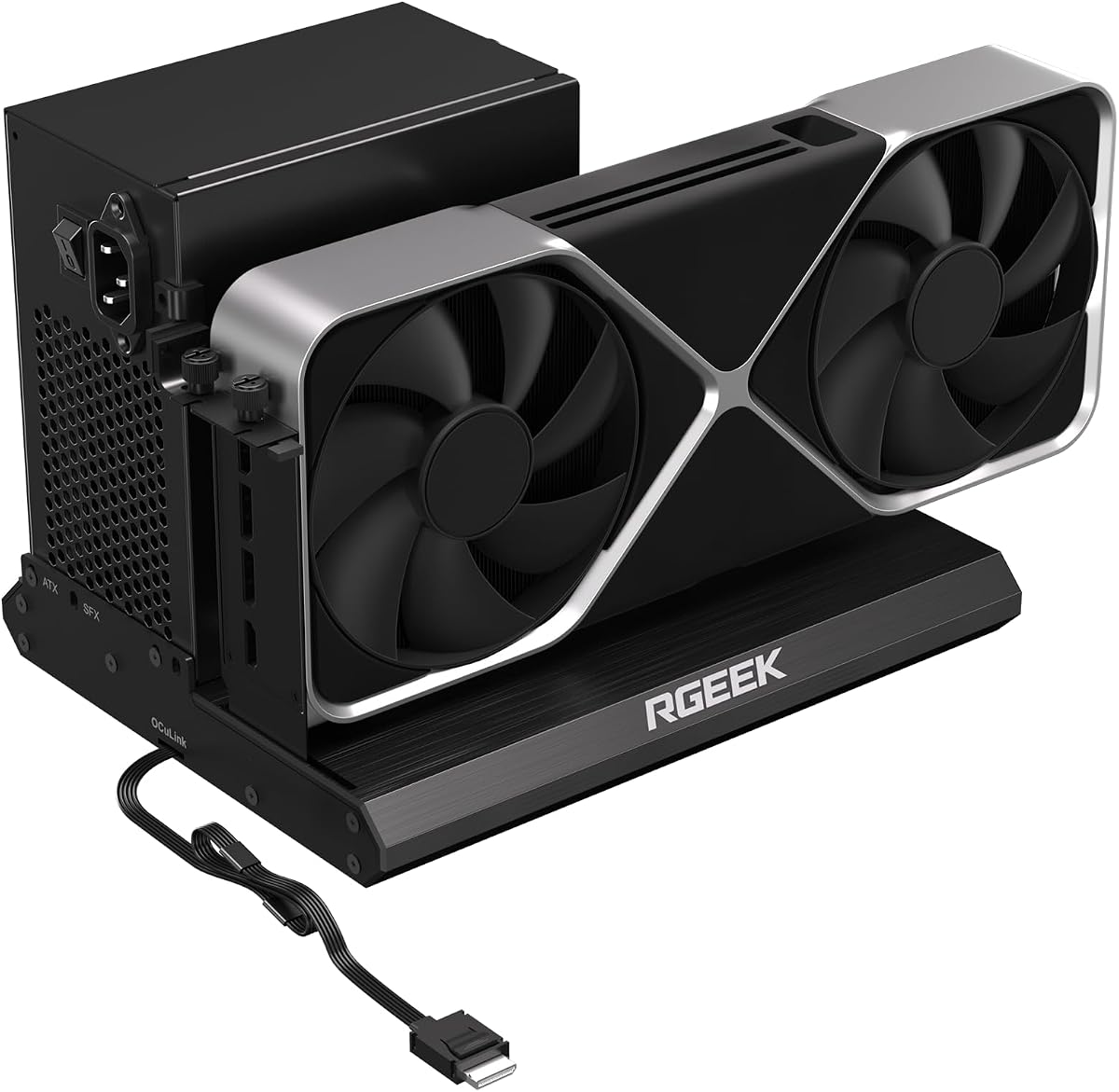


The MINISFORUM DEG2 leads our list with impressive dual-mode connectivity. It supports USB4 V2 and OCuLink for speeds up to 80Gbps. Its unique M.2 NVMe slot adds storage directly to the dock. This setup reduces file transfers and improves workflow efficiency for AI and creative users.
We may earn a commission when you buy through this link, at no additional cost to you.
Its hardware switch allows instant mode changes without cable swaps. This flexibility ensures compatibility across various host devices. The built-in signal booster stabilizes data transfer during high-bandwidth tasks. This minimizes latency and connection interruptions, ensuring consistent performance for demanding applications.
While it requires separate GPU and PSU purchases, its universal compatibility is a major advantage. The modular design supports easy upgrades for power and computing needs. Users should note the lack of included power components, which adds to the total cost.
This dock is ideal for professionals needing seamless integration and speed. Its ability to handle different power supplies makes it future-proof. For anyone building a high-performance portable workstation, this model stands out as the top recommendation.
Instant switching between TB5 and OCuLink modes offers unmatched versatility for different devices.
The built-in M.2 slot allows direct storage of models and files on the dock itself.
We may earn a commission when you buy through this link, at no additional cost to you.
The DEG2 TBT5 offers a premium experience with dual-link interfaces. It supports OCuLink and TBT5 with a physical toggle for easy switching. This design removes the need for swapping cables or tweaking software. The integrated M.2 storage helps keep project files synchronized across host devices.
We may earn a commission when you buy through this link, at no additional cost to you.
Its auto-on feature syncs power with your host device for a smooth desktop experience. Multiple ports including LAN and USB 3.2 provide excellent expandability. The design supports both ATX and SFX power supplies for flexible power solutions.
While it requires separate purchases for GPU and power supply, the flexibility is worth it. Users should note the incompatibility with MINISFORUM MS-02 Workstation. This is a detail to consider if you own that specific mini PC.
Best for users seeking top-tier connectivity and storage integration. It delivers desktop-grade power without sacrificing mobility. If you need rich ports and fast switching, this premium dock meets high expectations.
M.2 storage allows direct access to models, reducing file transfers and smoothing workflow.
Auto-On feature delivers a smooth desktop-like experience without manual startups.
We may earn a commission when you buy through this link, at no additional cost to you.
The DEG1 brings performance to a budget-friendly price point. Its compact design fits easily into a backpack for on-the-go upgrades. The OCulink 4i interface supports data rates up to 64Gbps for smooth graphics processing. This makes it suitable for mini PCs and laptops needing extra power.
We may earn a commission when you buy through this link, at no additional cost to you.
A unique Force Power On feature simplifies startup by syncing with your system. High-quality signal amplifiers ensure stable transmission. The locking mechanism prevents port damage from forced plugging. This attention to detail enhances reliability despite the lower cost.
Note that it does not support hot plugging and requires turning off the computer. The startup tracking function needs original cables and is limited to specific mini PCs. These constraints are acceptable for the value it provides.
Ideal for budget-conscious users needing high speeds without bulk. It balances cost and performance effectively. For portable gaming or work setups, this dock delivers exceptional value.
Compact 14cm size allows you to upgrade performance anytime and anywhere.
Supports both ATX and SFX power supplies to adapt to different specifications.
We may earn a commission when you buy through this link, at no additional cost to you.
The Razer Core X V2 focuses on ultra-fast Thunderbolt 5 performance. It delivers up to 80 Gbps bandwidth for smooth gaming and creative work. The enclosure fits four-slot wide GPUs with PCIe 4.0 support. Simple setup includes the required Thunderbolt 5 cable for immediate use.
We may earn a commission when you buy through this link, at no additional cost to you.
Its modular design allows tool-free installation of GPUs using thumbscrews. The vented steel chassis with active cooling maintains performance under heavy loads. 140W PD via USB C ensures your laptop stays powered while connected.
Mac users with M1 or later chips should note this dock does not support eGPUs on those devices. Also, GPU and power supply must be purchased separately adding to costs. These limitations are specific to Apple ecosystem users.
Best for Windows users wanting reliable Thunderbolt 5 speeds. The build quality and cooling are excellent. For serious gamers on laptops, this enclosure is a robust choice.
Ultra-fast bandwidth easily manages demanding creative apps and AAA games.
120mm fan ramps up automatically during heavy loads to sustain performance.
We may earn a commission when you buy through this link, at no additional cost to you.
This dock is dedicated to OCuLink performance with 64Gbps transfer speeds. Its detachable design on both ends improves portability and storage. The PCB uses 10μ gold-plated contacts to ensure conductivity and reduce resistance. This design helps prevent crashes or BSODs related to oxidation.
We may earn a commission when you buy through this link, at no additional cost to you.
The included cable is ultra-thin and flexible to eliminate port damage risks. It uses flat architecture with shielding to minimize interference. Compatible with standard ATX power supplies for stability. Multi-status LEDs provide clear visual feedback during operation.
Note that the OCulink interface does not support hot plugging so turn off your computer first. GPU and Power Supply are not included in the package. These are standard constraints for bare enclosures in this price range.
Ideal for enthusiasts prioritizing bandwidth and stability. The build quality addresses common failure points. For custom builds, this dock offers solid technical foundations.
Flexible cable architecture minimizes interference and performance degradation.
Detachable ends on enclosure improve storage and ease of transport.
We may earn a commission when you buy through this link, at no additional cost to you.
This dock supports PCIe 5.0 X4 with up to 128Gbps bandwidth. It is backward compatible with 4.0 and 3.0 interfaces. The full aluminum material ensures great heat dissipation and durability. Factory-soldered cables avoid extra adapters with negligible signal loss.
We may earn a commission when you buy through this link, at no additional cost to you.
It supports ATX, SFX, and SFX-L power supplies for installation. Uniform I/O layout keeps desktop wiring neat. Driver download after assembly gets you started quickly. It fits gaming and professional GPUs perfectly.
To reach full PCIe 5.0 speed you need an M.2 slot or adapter separately. Also note hot plugging is not supported for safety. These requirements are typical for high-speed PCIe docks.
Best for users planning future GPU upgrades. Its durability and speed capabilities are impressive. For heavy tasks like AI and 3D modeling, this dock delivers.
Full aluminum material provides great heat dissipation and sturdy durability.
Ideal for gaming, 3D modeling, graphic rendering and AI computing tasks.
We may earn a commission when you buy through this link, at no additional cost to you.
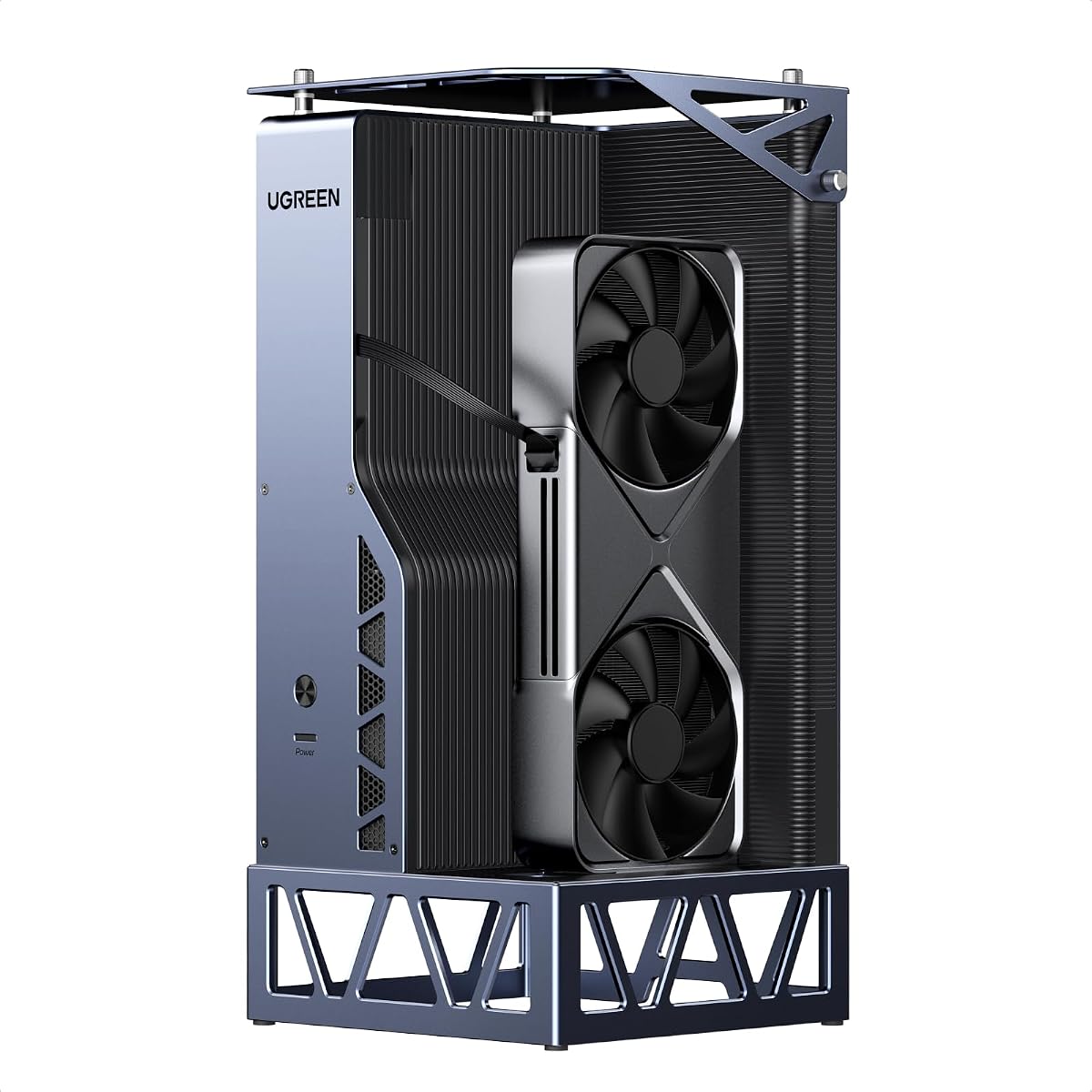
The UGREEN LinkStation delivers ultimate performance with dual-channel options. Choose OCuLink for near-zero latency or USB4 for hot-swap convenience. Its semi-open aluminum chassis is library-quiet compared to competitors. The removable top cover extends compatibility for oversized GPUs.
We may earn a commission when you buy through this link, at no additional cost to you.
It supports up to 370mm length and four-slot heatsink height. This allows installing high-end cards without restrictions or adapters. The built-in signal booster ensures stable transmission for 4K gaming. Connect with a single cable delivering 100W PD charging.
While the price is higher, the features justify the cost for professionals. It works across Windows, Linux, and Intel-based macOS systems. Note that the bracket opening supports dual-slot cards only.
Best for power users wanting flexibility and quiet performance. Its build quality and cooling are top-tier. For creators needing desktop power anywhere, this is a solid choice.
Choose your high-speed lane: OCuLink for latency or USB4 for compatibility.
ATX 3.1 PSU fan delivers true library-quiet operation for peace of mind.
We may earn a commission when you buy through this link, at no additional cost to you.
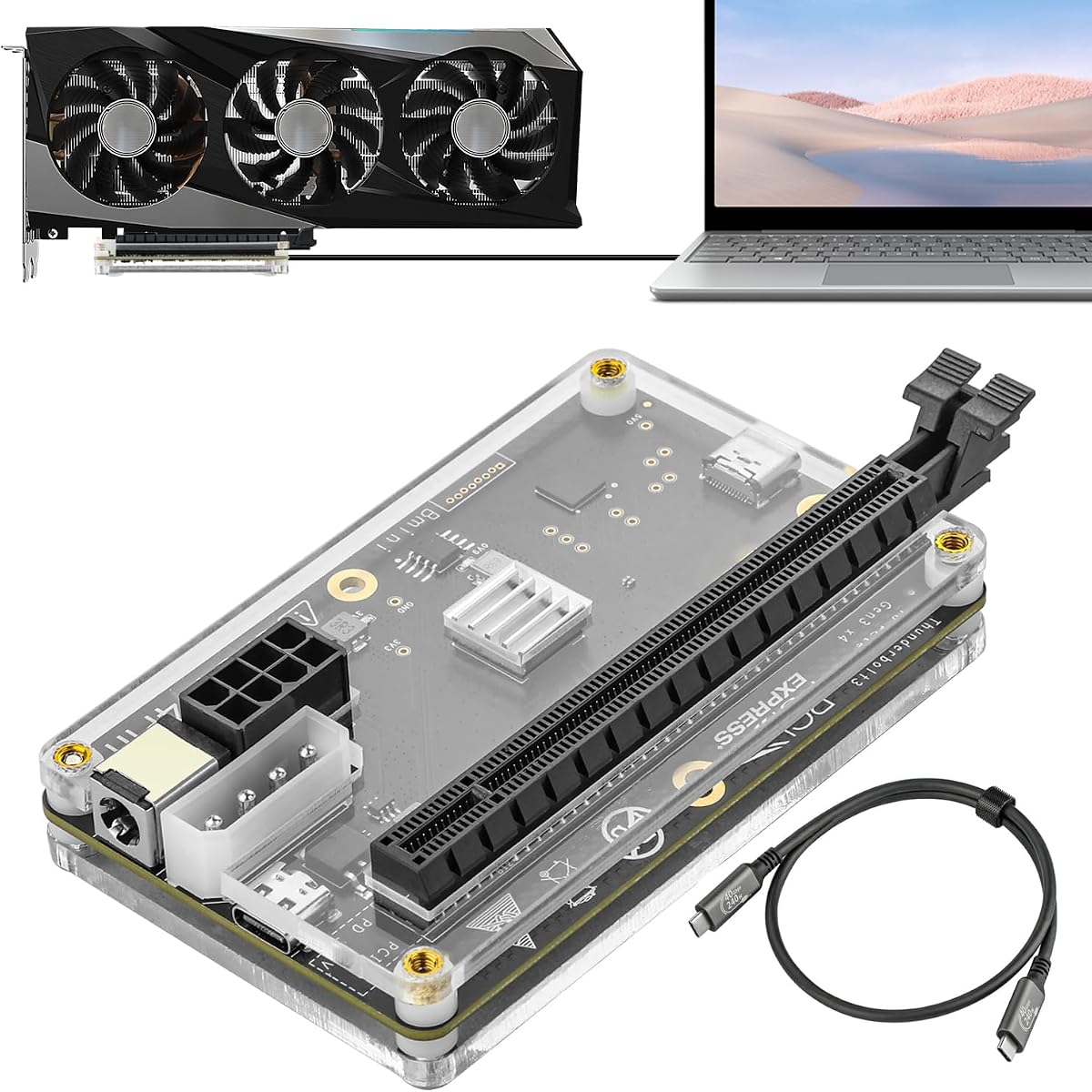
This dock supports NVIDIA and AMD GPUs from top-end to older models. It uses the JHL6340 controller delivering speeds around 22Gbps. Compatible with Thunderbolt 3/4 and USB4 laptops and consoles. Four flexible power input options allow you to choose what fits your setup.
We may earn a commission when you buy through this link, at no additional cost to you.
It includes a high-quality Thunderbolt 4 cable for immediate use. Perfect for graphics work and AI art creation. It works well across Windows and Linux systems. This broad compatibility makes it versatile for many users.
Intel GPU users are not recommended to use this dock. The transfer speed is lower than PCIe 4.0 docks. These trade-offs are acceptable for the flexible power options provided.
Best for those needing multiple power choices. The included cable is a nice bonus. For standard tasks and budget setups, it offers reliable performance.
Choose one from CPU, Molex, PD, or DC5521 power inputs.
Compatible with Windows 10/11, Linux, and various console interfaces.
We may earn a commission when you buy through this link, at no additional cost to you.
This DEG2 model adds a 2.5G LAN port for network connectivity. It supports Oculink and TBT5 modes with a physical toggle. M.2 storage keeps assets synchronized for faster GPU access. Signal optimization ensures seamless interoperability across cables and devices.
We may earn a commission when you buy through this link, at no additional cost to you.
Auto Power-On feature eliminates manual startups by syncing with your host device. It turns your workspace into a plug-and-play ecosystem. Flexible power options support both ATX and SFX supplies for future readiness.
Note that GPU and supplies are not included. Also incompatibility with MINISFORUM MS-02 Workstation applies. These details are key for specific user setups.
Best for users needing integrated LAN ports. It balances connectivity and power features well. For custom networked workstations, this dock is a strong contender.
2.5G LAN port adds essential network capabilities to your dock setup.
Engineered design minimizes signal degradation and connectivity errors.
We may earn a commission when you buy through this link, at no additional cost to you.
This dock features JHL7440 controller module for certified performance. It supports NVIDIA RTX 50 Series and AMD RX 7000 Series. 85W PD charging keeps your laptop powered. Built-in USB A port and daisy chain make it act as a hub.
We may earn a commission when you buy through this link, at no additional cost to you.
Ideal for NUCs, laptops, and gaming machines with USB4 interfaces. Local deployment of models like Deepseek-R1 is supported. Package does not contain ATX power or graphics card.
Warning: Do NOT insert CPU CABLE to PCIE-8PIN port to avoid power-off. Unplug and reset if error occurs. These precautions ensure device safety.
Best for those wanting hub features integrated. It is a versatile solution for connected workflows. For general use, it offers solid stability and support.
USB A port and daisy chain enable attaching external devices as needed.
Supports local deployment of models like Deepseek-R1 efficiently.
We may earn a commission when you buy through this link, at no additional cost to you.
Selecting the right Egpu Dock requires understanding key technical factors that affect performance and compatibility.
Interface speed determines how fast data transfers between your GPU and laptop. Look for Thunderbolt 5 or OCuLink options offering up to 80Gbps or 64Gbps. Faster interfaces reduce latency and maximize GPU performance for gaming or rendering tasks.
Prioritize docks matching your laptop's available ports for best results.
Most docks require external power supplies like ATX or SFX units. Ensure the dock supports the standard you plan to use. Universal compatibility gives flexibility for future upgrades or existing components.
Check included ports and requirements before purchasing separate PSUs.
Check if the dock accommodates your GPU dimensions including length and slot width. Models supporting 4-slot widths or longer cards provide more options. Physical constraints may prevent fitting oversized graphics cards.
Verify chassis clearance to avoid installation issues.
Effective cooling is critical for sustained performance during heavy loads. Aluminum chassis with active fans help maintain safe temperatures. Quiet operation improves user experience in home or office settings.
Choose docks with proven thermal designs to prevent throttling.
Consider docks with extra ports like LAN or USB for hub functionality. Some models offer integrated storage or specialized connectors. More ports simplify setup by reducing the need for external accessories.
Evaluate which extra connections match your workflow needs.
Hot plugging allows connecting or disconnecting devices while powered on. Many OCuLink docks do not support this feature requiring shutdowns. Thunderbolt docks typically enable hot swaps for convenience.
Decide if frequent disconnection is a priority for your setup.
Ensure compatibility with your operating system and chipset. Some docks limit Mac usage or require specific BIOS updates. Cross-platform support like Windows and Linux adds versatility for diverse users.
Confirm OS support before buying to avoid functional issues.
Included cables affect convenience and connection quality. Flexible cables reduce port stress and interference. Dedicated connectors with locking mechanisms improve stability and prevent accidental disconnections.
Select docks with robust cable solutions for long-term reliability.
Connect the dock to a supported high-speed port on your laptop or PC using the included or compatible cable. Ensure power supplies are correctly installed and connected before powering on the dock and your system.
Install necessary GPU drivers and dock drivers from the manufacturer's website for optimal performance. Some docks may require BIOS settings adjustment to enable external graphics functionality on your device.
Maintain your dock by keeping vents clear of dust and ensuring adequate airflow. Avoid hot plugging OCuLink connections without shutting down first. Regularly check connections and firmware updates to keep performance stable.
No, they require laptops with compatible ports like Thunderbolt 3/4/5 or OCuLink. Check your device specifications and BIOS settings. Some older or Intel chipset models may have limited or no support.
Most docks do not include GPUs or power supplies unless stated. You must purchase these components separately. Always check product listings for what is included before buying.
Support varies by model and OS version. Some docks work on Intel-based macOS but M1+ chips are often unsupported. Verify macOS compatibility in product specs before purchase.
Thunderbolt docks offer universal compatibility and hot plugging with lower latency. OCuLink docks provide higher bandwidth but usually lack hot plug support and require specific ports.
It depends on the interface. Thunderbolt docks generally support hot plugging while OCuLink docks usually require shutting down before unplugging cables.
ATX units are larger and more common while SFX are compact. Choose based on your available space and the dock's compatibility. Universal docks accept both options.
Yes, docks with high bandwidth and GPU support enable local AI model deployment. Look for models with integrated storage and fast data transfer rates for better workflow.
Incorrect connections like CPU cables in PCIe ports can trigger power-off protection. Always match the correct connector to the dock's specified port to avoid damage.
We reviewed ten top Egpu Docks highlighting key features from budget-friendly OCuLink docks to premium Thunderbolt models. Each option balances speed, flexibility, and build quality to meet different user needs effectively.
Prioritize interface speed and compatibility with your specific laptop to ensure peak performance. Consider power supply flexibility and port options that match your long-term setup plans.
Check current prices and availability since they vary by retailer and stock. Verify all compatibility requirements carefully before purchasing to ensure seamless integration with your devices.